
Getting Started with hotComm CL
|
Document number: CLGS.3.00.01
Copyright (c) 2003 1stWorks Corporation. All rights reserved. |
Welcome to hotComm Conference Lite (hotComm CL).
Click here for a walkthru of things you can do in a meeting.
- Download, install and start hotComm CL. At the end of installation, click Finish to start hotComm immediately.
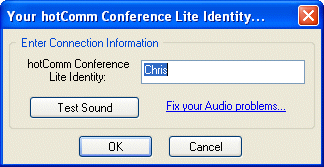
hotComm CL places a tiny headset icon in the lower right corner of your entire screen, and pops up an Identity window.
- Enter an Identity, the name that displays in the meeting Invited List.
Click the Test Sound button to make sure that your sound is configured correctly for hotComm's TrueSpeech voice-over-IP technology.
- The meeting organizer gives you a weblink to the room, and a password. Click the weblink, such as this one:
Demo hotMeeting
- Enter the password. The password you're given determines which level of features you can use: Guest, Presenter, or Moderator.
The Guest password to the Demo hotMeeting is: 123
Checking Audio
Please check your audio before the meeting starts, to ensure that your hotComm is configured correctly for hotComm's TrueSpeech voice-over-IP technology. Also take this opportunity to set your speaker and microphone volume.
To check audio, right-click the hotComm icon in the lowest right corner of your entire screen and select Change Identity. Then click Test Sound.
Our audio test site is accessible at Audio test site. The password is: TEST.
If you have any problems, see the "I can't hear anyone" article in the 1stWorks Support website.
Upgrade hotComm CL
To upgrade hotComm CL, download and run the installation program again. Do not uninstall!
Click here to download now:

Starting hotComm CL
To start hotComm CL:
- Double-click the hotComm CL icon on your desktop.

hotComm CL places a tiny headset icon in the lower right corner of your entire screen.
- The meeting organizer gives you a weblink to the room, and a password. Click the weblink, such as this one:
Demo hotMeeting
- Enter the password. The password you're given determines which level of features you can use: Guest, Presenter, or Moderator.
The Guest password to the Demo hotMeeting is: 123
For customer support, see the 1stWorks Support website.
Top
For more about hotComm CL, see:
| hotComm CL | Guests | |
| Getting Started | Presenters | |
| Walkthru | Moderators | |
| FAQ | IT Administrators | |
| Comparing Guests, Presenters, and Moderators | ||
|
hotComm CL is a 2mB client for participation in any hotMeeting. We Suggest Run or Open (not Save).

|

Try out hotComm CL in a Demo hotMeeting. |

Regularly scheduled training classes. |

hotComm CL Help file -- the basics. |

FAQ, how to articles, documentation, trouble-shooting, and online support. |


|